

In this short guide we’ll go through the Tasks feature of Xevol.
Xevol Tasks help you utilize AI/LLM technology for “translating” your text.
This approach offers you a way to go global using latest AI technologies to cross borders, cultures to deliver your ideas to customers all over the world.
Set up
This guide assumes you have created an account and you’re in your workspace. Xevol offers a free trial period so you can give it a go free of charge at app.xevol.com.
Tasks
Tasks button is always visible in the left bottom corner of your workspace. Various plans offer different AI request limits but any plan is enough to go through this guide including free trial.
Let’s click on Tasks. You’ll see it has a sidebar and a task view.
Let’s create a new task by clicking “Add” button. You’ll see that tasks offer you three options:
Translate
Revise
Write Draft
For this guide’s purpose, let’s select Translate.
Translate
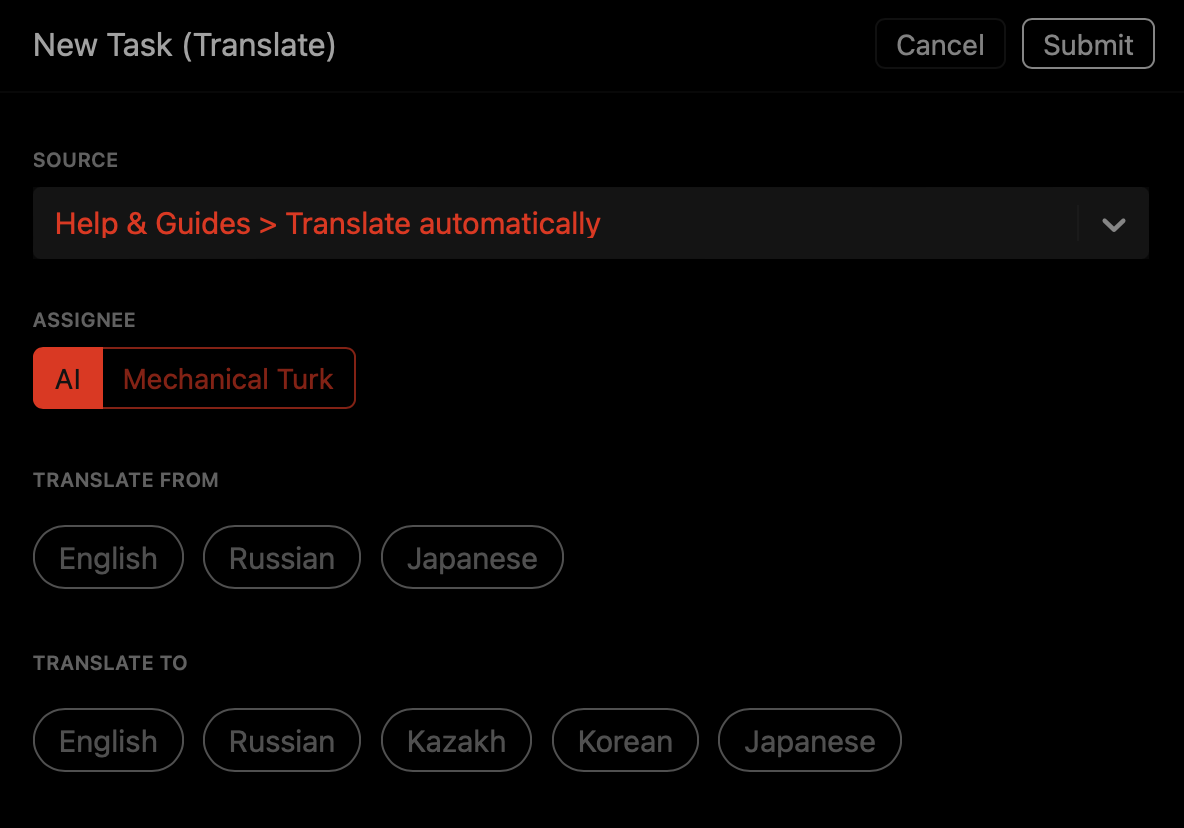
Let’s select from English to Japanese (more languages are to be added, reach out to me at [email protected] if you want your language added).
Once processed, you’ll see results with several actions in the toolbar.
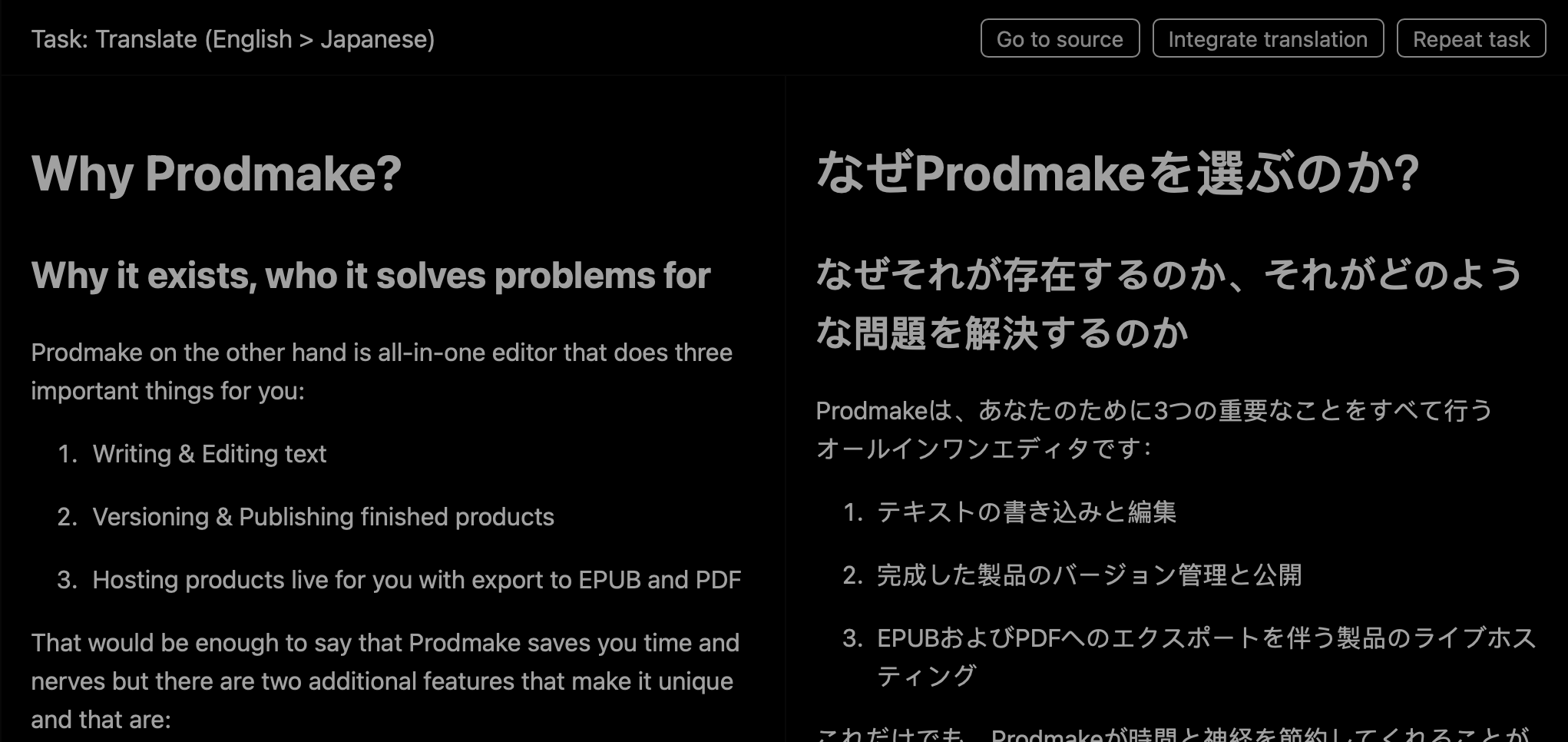
To integrate translation and make it available press “Integrate Translation” button.
To see multiple languages product has to be set with multi-language support in General view.
Fin
Tasks allow makers to quickly produce eligible translations using AI.
It’s not perfect but any version beats no version.
Go global today.