How to configure a custom domain?
Control brand and access. Strengthen authority.
 Kuan
Kuan
In this article, we will discuss how to set up your domain to work with your product on Xevol.
Video
Will be added soon.
Set up
First of all, all products are supported by two hosts:
render.xevol.com/?id=[product ID][product ID].xevol.com
As an example, the Xevol blog that you can see on the website xevol.com is also displayed on:
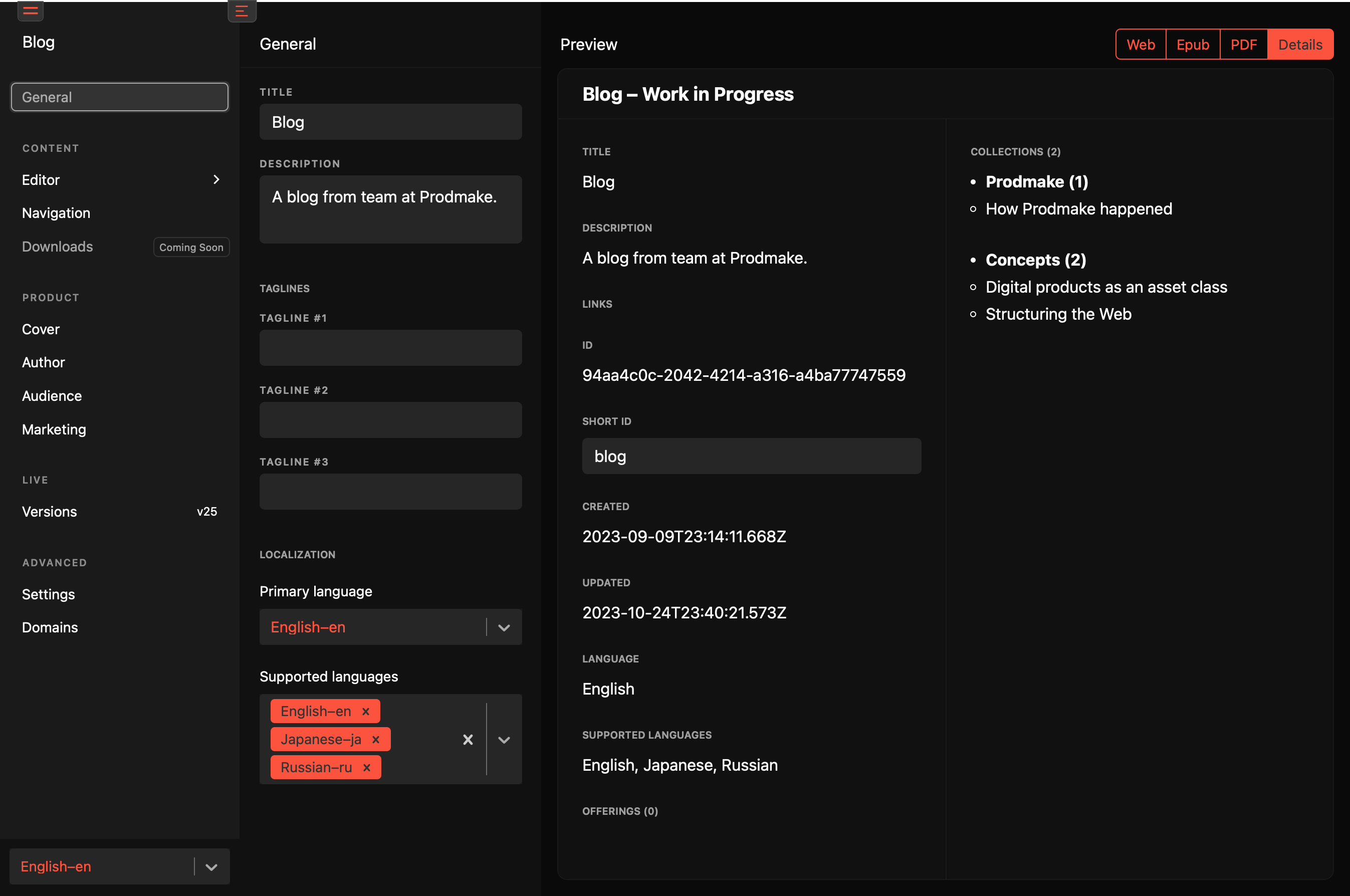
ID parameter that you see in the second and third links can be found in the "Details" tab of your product.
CNAME Setup
In the DNS control panel of your provider (I recommend Cloudflare), you will need to add two CNAME records. Let's say your domain is madebyazamat.com, in your case the CNAME records will look like this:

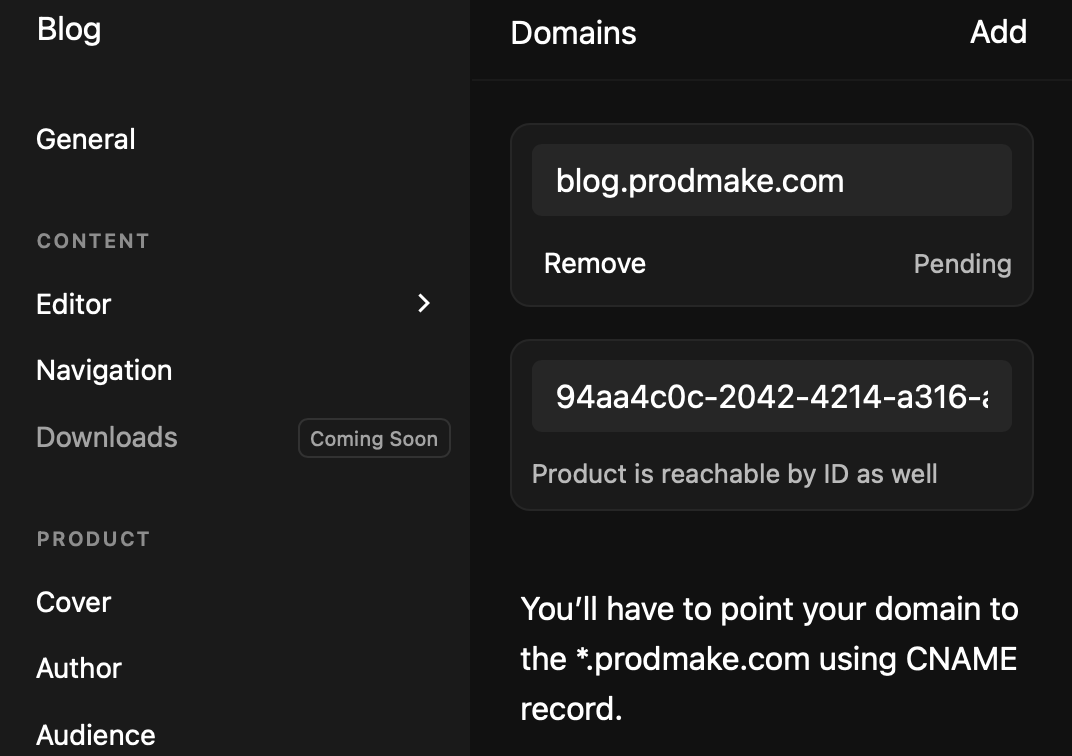
So in your case, the Content field will be your ID taken from the "Details" tab on the subdomain xevol.com (similar to the second link above) which is also visible in the "Domains" section of your product:
Result
After adding the domain, verification may take up to 12 hours, but it's rare. Usually, everything works noticeably faster. The first load of your domain may give a certificate error. The second load will provide you with an SSL certificate using Xevol's internal systems.